LocalNode
How it worksDemoAppsPricingFAQShop now
← All guides
Home/Community/Collaborating on Documents in Nextcloud

Collaborating on Documents in Nextcloud

Files
Beginner
5 min read
Published: May 7, 2026

Was this helpful?

Help us improve our community guides.

In this guide

  • Overview
  • Step 1: Installing Collabora Online
  • Step 2: Creating and editing documents
  • Step 3: Real-time collaboration
  • Next Steps

Need direct help?

LocalNode Care Plan members get priority remote support.

Email Support →

More in Files

Connecting Nextcloud to External Storage

Connecting Nextcloud to External Storage — Step-by-step guide for your LocalNode.

5 min read

Setting Up Nextcloud for the First Time

Setting Up Nextcloud for the First Time — Step-by-step guide for your LocalNode.

5 min read

Setting Up Nextcloud Talk for Private Family Chat

Setting Up Nextcloud Talk for Private Family Chat — Step-by-step guide for your LocalNode.

5 min read
LocalNode

Plug-and-play home server. Your data, your hardware, your rules.

Product

How it worksDemoAppsCommunityPricingFAQ

Support

ContactShipping & ReturnsTrack Order

Legal

Privacy PolicyTerms of ServiceShipping Policy
© 2026 LocalNode. Built for people who value their privacy.Denton, TX · hello@localnode.tech

You don't need a Microsoft Office 365 subscription. Nextcloud includes a full office suite that allows you to create, edit, and collaborate on Word, Excel, and PowerPoint files directly in your web browser.

Overview

Nextcloud uses a built-in office suite called Collabora Online (based on LibreOffice). When you click on a `.docx` or `.xlsx` file in your Nextcloud dashboard, it doesn't just download the file; it opens a fully-featured word processor right in the browser, identical to Google Docs.

Step 1: Installing Collabora Online

On newer versions of Nextcloud, the office suite is usually pre-installed. Let's verify it is active.

  1. Log into Nextcloud with your Admin account.
  2. Click your profile picture in the top right and select Apps.
  3. In the left sidebar, click Office & text.
  4. Look for the app named Nextcloud Office and ensure it is enabled.
  5. Look for the app named Collabora Online - Built-in CODE Server and ensure it is enabled.

⚠️ Warning: The built-in CODE server is quite heavy and requires a minute or two to start up the first time you load a document. If it fails to load, restarting the Nextcloud app from the LocalNode dashboard usually fixes it.

Step 2: Creating and editing documents

  1. Go to your main Nextcloud Files dashboard.
  2. Click the + New button at the top of the file list.
  3. Select "New Document", "New Spreadsheet", or "New Presentation".
  4. Type a name for the file (e.g., "Family Budget").
  5. The file will be created and will immediately open in the browser editor.

The interface looks incredibly similar to Microsoft Office, complete with ribbons, formatting tools, and formula support for spreadsheets. Any changes you make are saved to the LocalNode automatically in real-time.
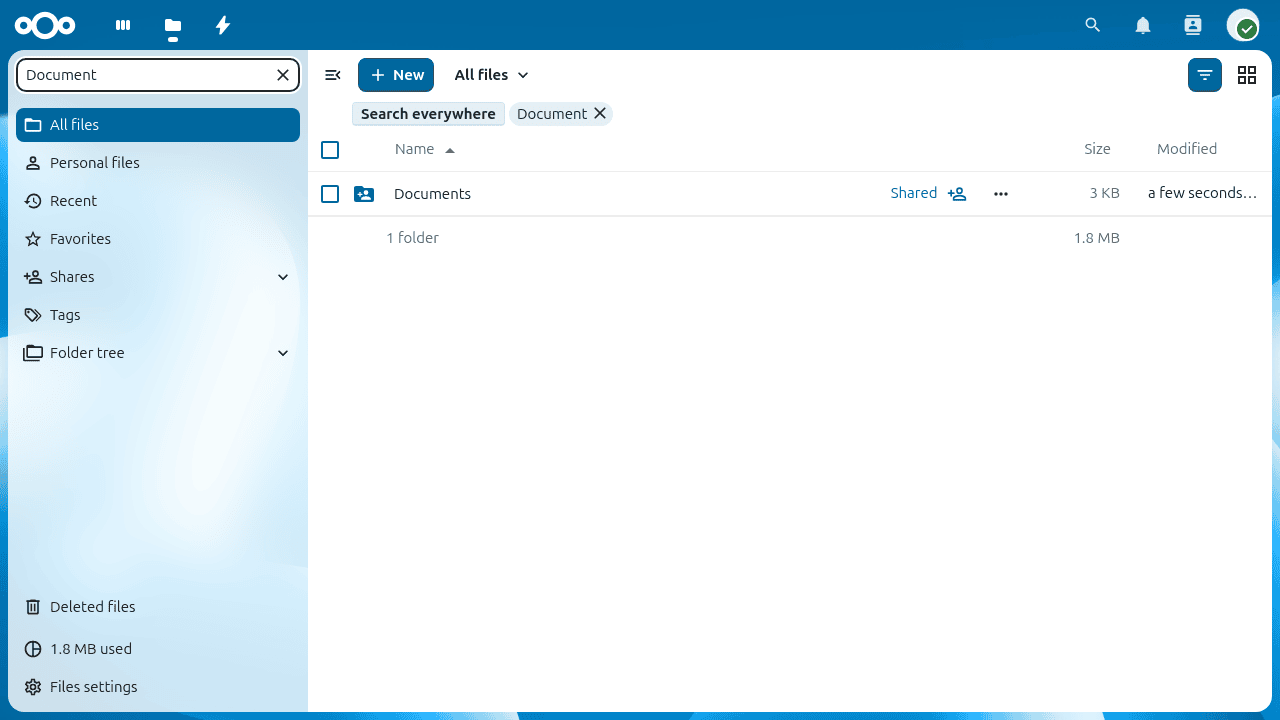
Nextcloud Files view excerpt comparable to opening documents for collaborative editing.
Nextcloud documentation screenshot (nextcloud/documentation, AGPL / CC BY-SA depending on section).

Step 3: Real-time collaboration

Just like Google Docs, multiple people can edit the same document at the exact same time.

  1. Close the document and return to the Files list.
  2. Click the Share icon next to the document you just created.
  3. Share it with a family member (ensuring "Allow editing" is checked).
  4. When both you and the family member click the document, you will both see it open.

You will see their cursor moving around the screen in real-time, color-coded with their name. There is also a built-in chat sidebar on the right side of the screen so you can talk to each other while editing.

Next Steps

  • Setting up Nextcloud Talk for family chats
  • Syncing these documents automatically to your PC

Need help? Email hello@localnode.tech or visit localnode.tech/contact.