Syncing Files from Your Pc to Nextcloud
Files
Beginner
5 min read
Published: May 7, 2026
Was this helpful?
Help us improve our community guides.
Help us improve our community guides.
Collaborating on Documents in Nextcloud — Step-by-step guide for your LocalNode.
Connecting Nextcloud to External Storage — Step-by-step guide for your LocalNode.
Setting Up Nextcloud for the First Time — Step-by-step guide for your LocalNode.
The Nextcloud desktop client acts as a bridge between your laptop and your LocalNode. Understanding how the synchronization engine works will save you massive amounts of hard drive space.
Once you install the desktop app, a new "Nextcloud" folder appears in your file explorer. Anything you drag into this folder is instantly uploaded to the server. If you delete a file from this folder, it is deleted from the server.
If you have 500GB of files stored on your LocalNode, you likely do not want all 500GB downloaded to your laptop's small hard drive. Nextcloud solves this with "Virtual Files" (similar to OneDrive's Files On-Demand).
How it works:When you open the Nextcloud folder on your PC, you will see all your files, but they will have a small cloud icon next to them. These are "placeholder" files that take up zero space. When you double-click one, Nextcloud instantly downloads it from the LocalNode and opens it.
To keep a file permanently on your laptop (e.g., if you are going on a flight without internet), right-click the file and select "Always keep on this device".
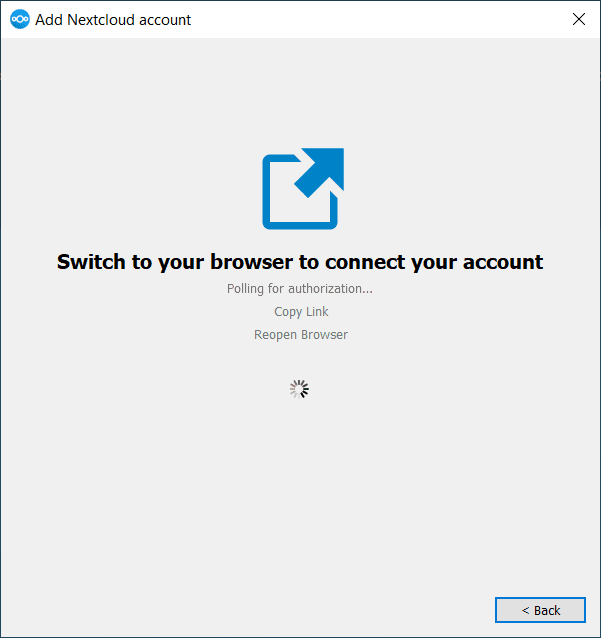
If you are using Mac or Linux and Virtual Files are behaving oddly, you can use the older, rock-solid "Selective Sync" method.
💡 Tip: You can always view the unchecked folders by logging into the Nextcloud web interface in your browser.
If you edit a Word document on your laptop while offline, and your spouse edits the exact same document on the web interface, Nextcloud won't know which version to keep when your laptop comes back online.
When this happens, Nextcloud will create a "Conflict File". You will see two files in the folder:
Budget.xlsxBudget (conflicted copy 2026-05-01).xlsxYou must manually open both, combine the changes, save the master file, and delete the conflicted copy to resolve the issue.
Need help? Email hello@localnode.tech or visit localnode.tech/contact.