Connecting Transmission to Radarr and Sonarr
Media
Beginner
5 min read
Published: May 7, 2026
Was this helpful?
Help us improve our community guides.
Help us improve our community guides.
Adding Your Movie and Tv Collection to Jellyfin — Step-by-step guide for your LocalNode.
Automating Subtitles with Bazarr — Step-by-step guide for your LocalNode.
Best Jellyfin Plugins to Install — Step-by-step guide for your LocalNode.
⚠️ Advanced Software — requires Radarr & Sonarr setup first
Radarr and Sonarr are brains; they organize and monitor. Transmission is the muscle; it actually does the downloading. We need to link them together so the brains can control the muscle.
Transmission is a lightweight, highly reliable BitTorrent client. When Radarr finds a movie you want, it sends the magnet link directly to Transmission's API. Transmission downloads the file into a temporary "Downloads" folder. Once finished, it alerts Radarr, which then grabs the file, renames it, and moves it into Jellyfin.
First, we just need to ensure Transmission is running and accessible.
http://localnode.local:9091.Now we tell Radarr where Transmission lives.
transmission (Do not use an IP address. Because these apps run in Docker on the LocalNode, they can talk to each other using their container names!)movies (This tells Transmission to tag movie downloads, separating them from TV shows).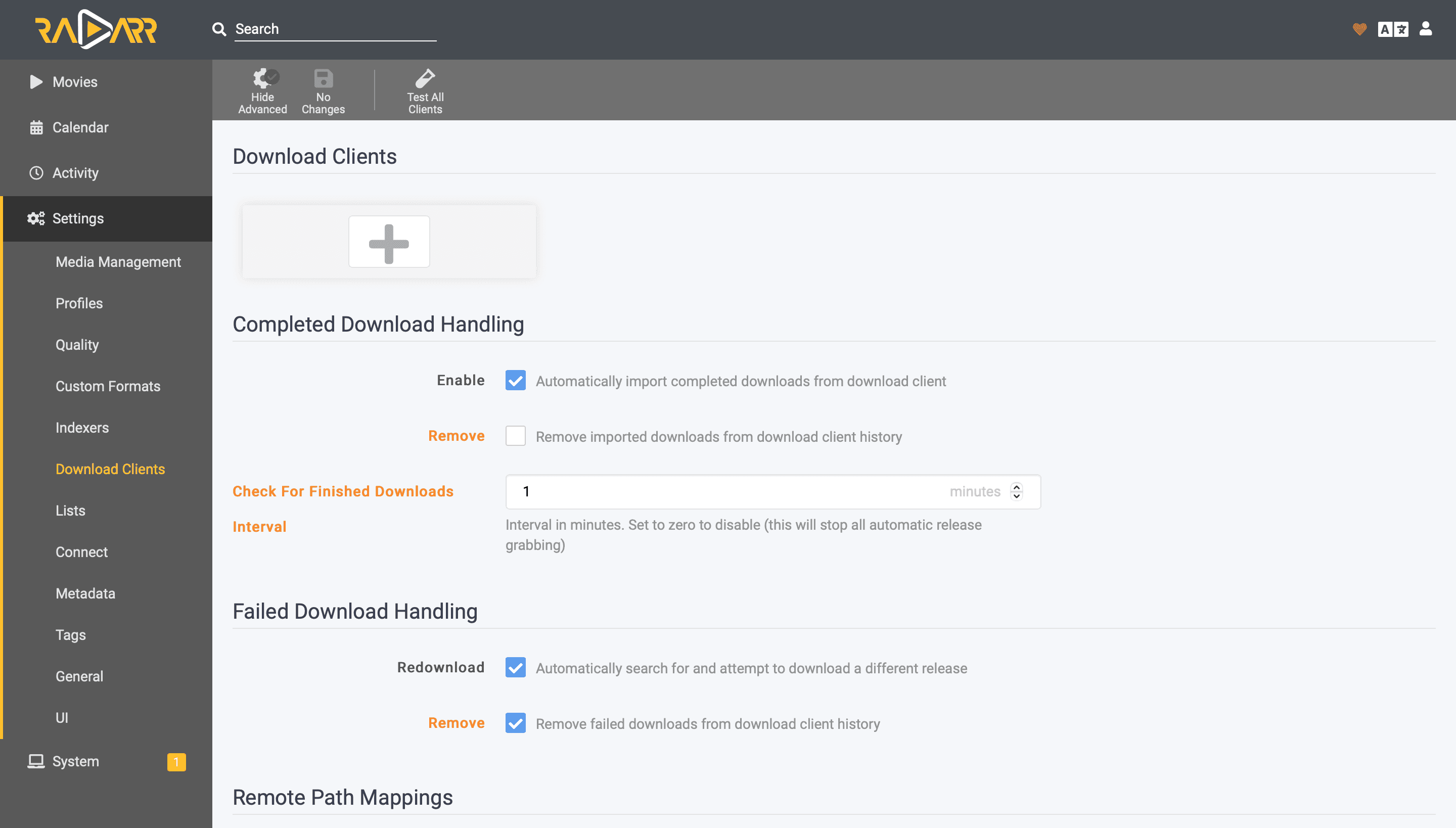
💡 Tip: Using transmission as the Host address instead of 192.168.1.50 ensures that even if your router assigns your server a new IP address, the apps will never lose connection to each other.
You must repeat this exact process in Sonarr, with one tiny difference.
transmission, Port: 9091.tv (This is the only difference!).Now both apps are connected to your download client. The final piece of the puzzle is giving them a search engine to find the files in the first place, which we do using Prowlarr.
Need help? Email hello@localnode.tech or visit localnode.tech/contact.