LocalNode
How it worksDemoAppsPricingFAQShop now
← All guides
Home/Community/Automating Subtitles with Bazarr

Automating Subtitles with Bazarr

Media
Beginner
5 min read
Published: May 7, 2026

Was this helpful?

Help us improve our community guides.

In this guide

  • Overview
  • Step 1: Connecting to Radarr and Sonarr
  • Step 2: Adding Subtitle Providers
  • Step 3: Configuring Languages
  • Next Steps

Need direct help?

LocalNode Care Plan members get priority remote support.

Email Support →

More in Media

Adding Your Movie and Tv Collection to Jellyfin

Adding Your Movie and Tv Collection to Jellyfin — Step-by-step guide for your LocalNode.

5 min read

Best Jellyfin Plugins to Install

Best Jellyfin Plugins to Install — Step-by-step guide for your LocalNode.

5 min read

Complete Jellyfin Setup Guide for Localnode

Complete Jellyfin Setup Guide for Localnode — Step-by-step guide for your LocalNode.

5 min read
LocalNode

Plug-and-play home server. Your data, your hardware, your rules.

Product

How it worksDemoAppsCommunityPricingFAQ

Support

ContactShipping & ReturnsTrack Order

Legal

Privacy PolicyTerms of ServiceShipping Policy
© 2026 LocalNode. Built for people who value their privacy.Denton, TX · hello@localnode.tech

Nothing is more frustrating than settling in to watch a movie and realizing there are no subtitles for the foreign language scenes. Bazarr connects to Radarr and Sonarr to automatically download perfectly synced `.srt` files.

Overview

Bazarr does not download media. It looks at the media Radarr and Sonarr have already downloaded, checks if that media has subtitles, and if not, searches sites like OpenSubtitles to download them and place them next to the video file.

Step 1: Connecting to Radarr and Sonarr

Bazarr needs to know what movies and shows you have.

  1. Open the Bazarr app from your LocalNode dashboard.
  2. Go to Settings > Radarr.
  3. Address: Type radarr (the internal Docker name).
  4. Port: 7878.
  5. API Key: Copy the API key from Radarr (Settings > General in the Radarr app) and paste it here.
  6. Click Test, then Save.

Repeat this for the Sonarr tab: Address sonarr, Port 8989, and the Sonarr API Key.

Step 2: Adding Subtitle Providers

Bazarr needs to know where to search for subtitles.
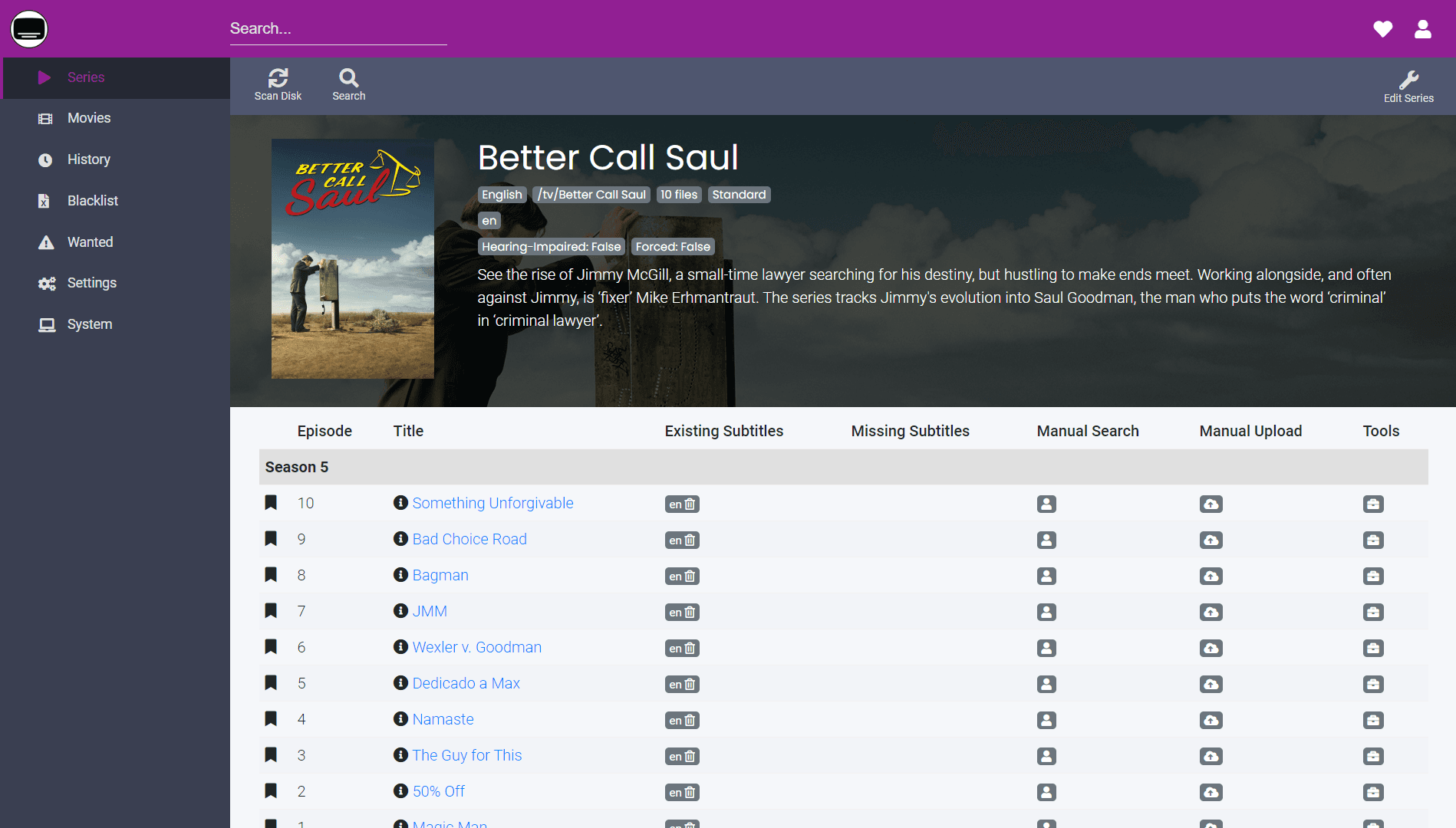
  1. Go to Settings > Providers.
  2. Click the + button.
  3. Search for OpenSubtitles.com.
  4. You will need a free account at OpenSubtitles.com. Enter your username and password.
  5. Click Save.
  6. Add a second provider, such as YIFY or TVSubtitles (these usually don't require accounts).
Bazarr dashboard listing movies and episodes with subtitle provider integration.
Bazarr screenshot from morpheus65535/bazarr README (GPL-3.0).

⚠️ Warning: Free subtitle sites have strict API limits. If you add 1,000 movies at once, OpenSubtitles will ban your IP address for 24 hours. Bazarr will simply pause and try again the next day.

Step 3: Configuring Languages

  1. Go to Settings > Languages.
  2. Under the "Languages Filter", select the languages you actually want (e.g., English).
  3. Under "Default Profile", add the language profile you want to apply to all media.
  4. Check the box for "Hearing Impaired" if you prefer subtitles that describe sound effects (e.g., [door slams]). Uncheck it if you only want dialogue.
  5. Click Save.

Now, go back to the main Bazarr dashboard and click Update Wanted. Bazarr will scan your entire Jellyfin library, figure out what subtitles are missing, and begin downloading them automatically.

Next Steps

  • Ensuring Jellyfin is set to automatically load .srt files

Need help? Email hello@localnode.tech or visit localnode.tech/contact.