Complete Jellyfin Setup Guide for Localnode
Media
Beginner
5 min read
Published: May 7, 2026
Was this helpful?
Help us improve our community guides.
Help us improve our community guides.
Adding Your Movie and Tv Collection to Jellyfin — Step-by-step guide for your LocalNode.
Automating Subtitles with Bazarr — Step-by-step guide for your LocalNode.
Best Jellyfin Plugins to Install — Step-by-step guide for your LocalNode.
Jellyfin is the crown jewel of the LocalNode experience. It provides a beautiful, Netflix-style interface for all your downloaded movies, TV shows, and music. This master guide covers everything from the initial wizard to advanced library management.
Unlike commercial streaming services, Jellyfin is completely free, open-source, and does not track your viewing habits. All your media stays on your LocalNode. Because it is highly customizable, spending a few minutes setting it up properly will result in years of perfect streaming.
Before you begin, ensure you have:
http://localnode.local:8096.💡 Tip: If you ever forget your admin password, you can reset it via the LocalNode main dashboard settings panel.
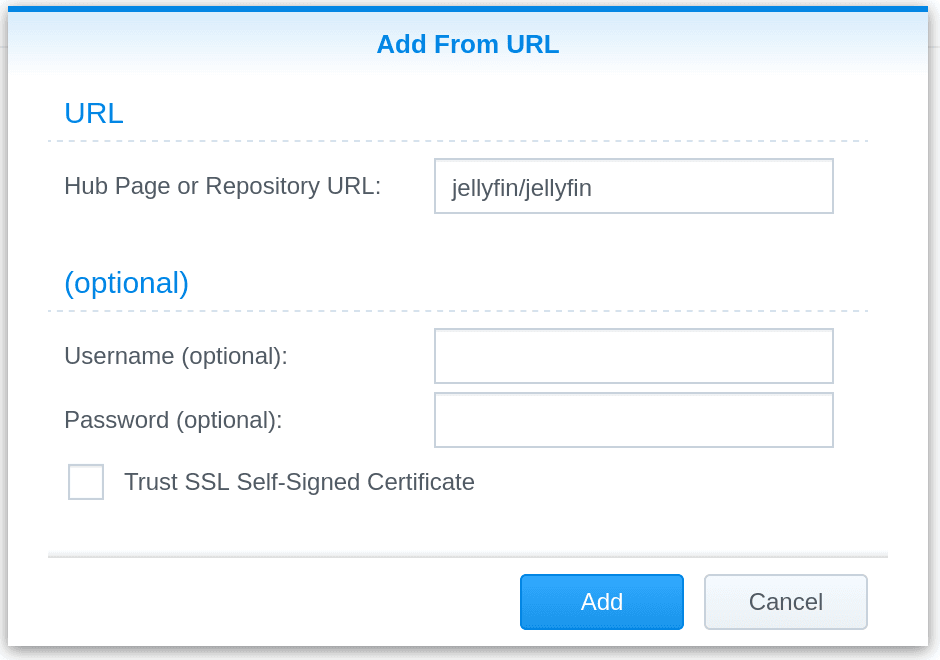
Now that you are logged in, let's configure your libraries.
/media/movies or /mnt/storage/movies).Repeat this process for your TV Shows, ensuring you select "Shows" as the Content Type and point it to your TV folder.
💡 Tip: Make sure your files are named cleanly (e.g., Inception (2010).mp4). If files have messy names with lots of tags, Jellyfin may download the wrong movie poster.
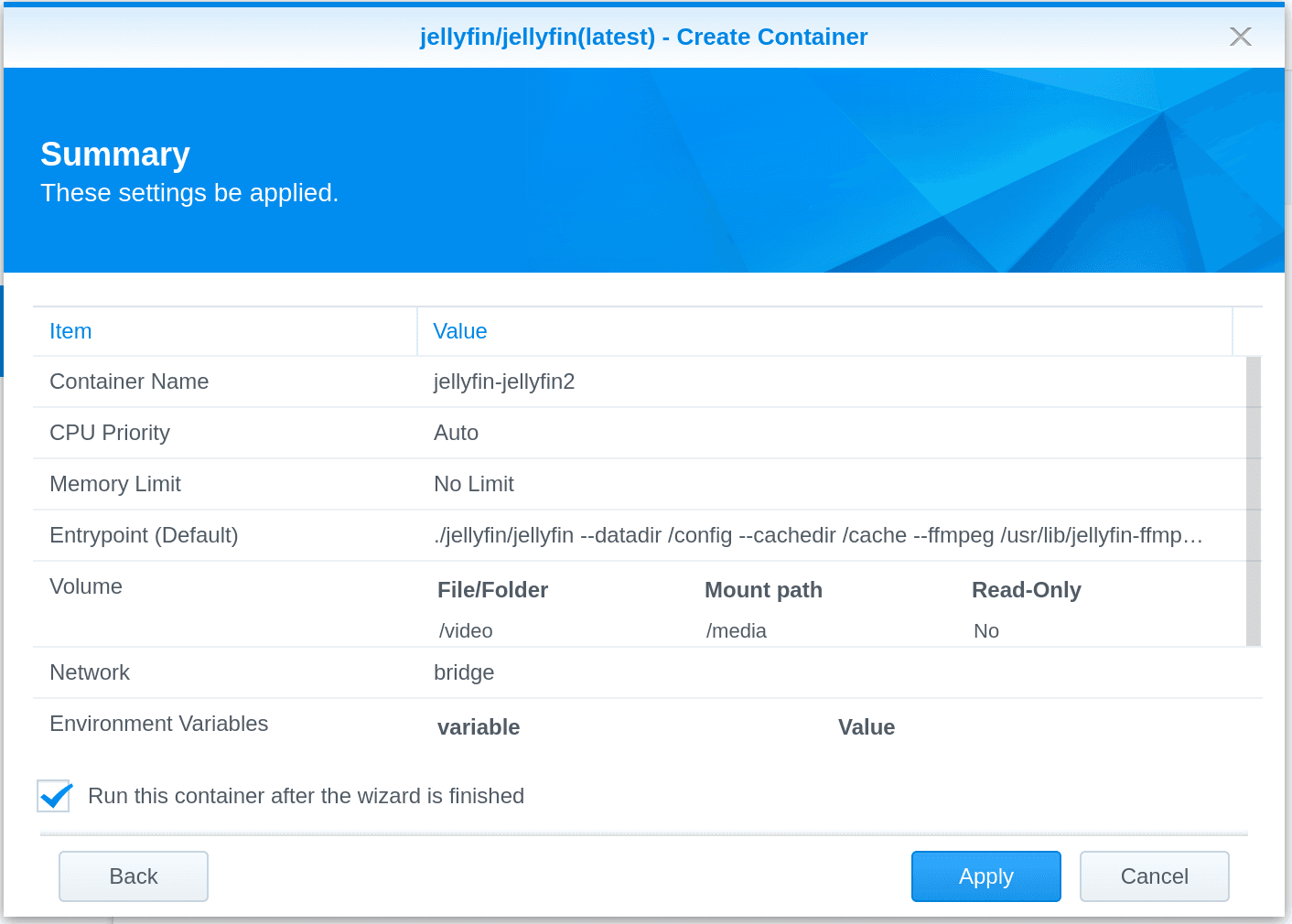
Wait for the metadata scan to finish (the progress circle at the top of the dashboard). Once complete:
⚠️ Warning: If the video buffers endlessly in the web browser, your browser might not support the video codec (like HEVC/H.265). We highly recommend using the dedicated Jellyfin Media Player app for Windows/Mac instead of Chrome.
Need help? Email hello@localnode.tech or visit localnode.tech/contact.