Setting Up Shared Albums in Immich
Photos
Beginner
5 min read
Published: May 7, 2026
Was this helpful?
Help us improve our community guides.
Help us improve our community guides.
Backing Up Immich: Protect Your Photo Library — Step-by-step guide for your LocalNode.
Complete Immich Setup Guide — Step-by-step guide for your LocalNode.
Immich Face Recognition Setup — Step-by-step guide for your LocalNode.
Immich makes it incredibly easy to share photos with family members who also have accounts on your LocalNode. You can share specific albums (like a vacation) or share your entire library with a spouse.
By default, all photos backed up to Immich are completely private. Even as the server administrator, you cannot see photos backed up by your spouse's account unless they explicitly share them with you.
Creating a shared album allows multiple people to add photos to a single collection. This is perfect for trips where everyone took photos on their own phones.
Now that the album exists, you need to invite people to it.
When those users open their Immich app, they will see the album under the "Sharing" tab. They can view your photos and tap the "+" button inside the album to upload their own pictures to the collection.
⚠️ Warning: You can only share albums natively with people who have accounts on your LocalNode. If you want to share an album with a friend across the country who does not have an account, you must click the "Share Link" button to generate a public URL. They will be able to view the photos, but not add to them.
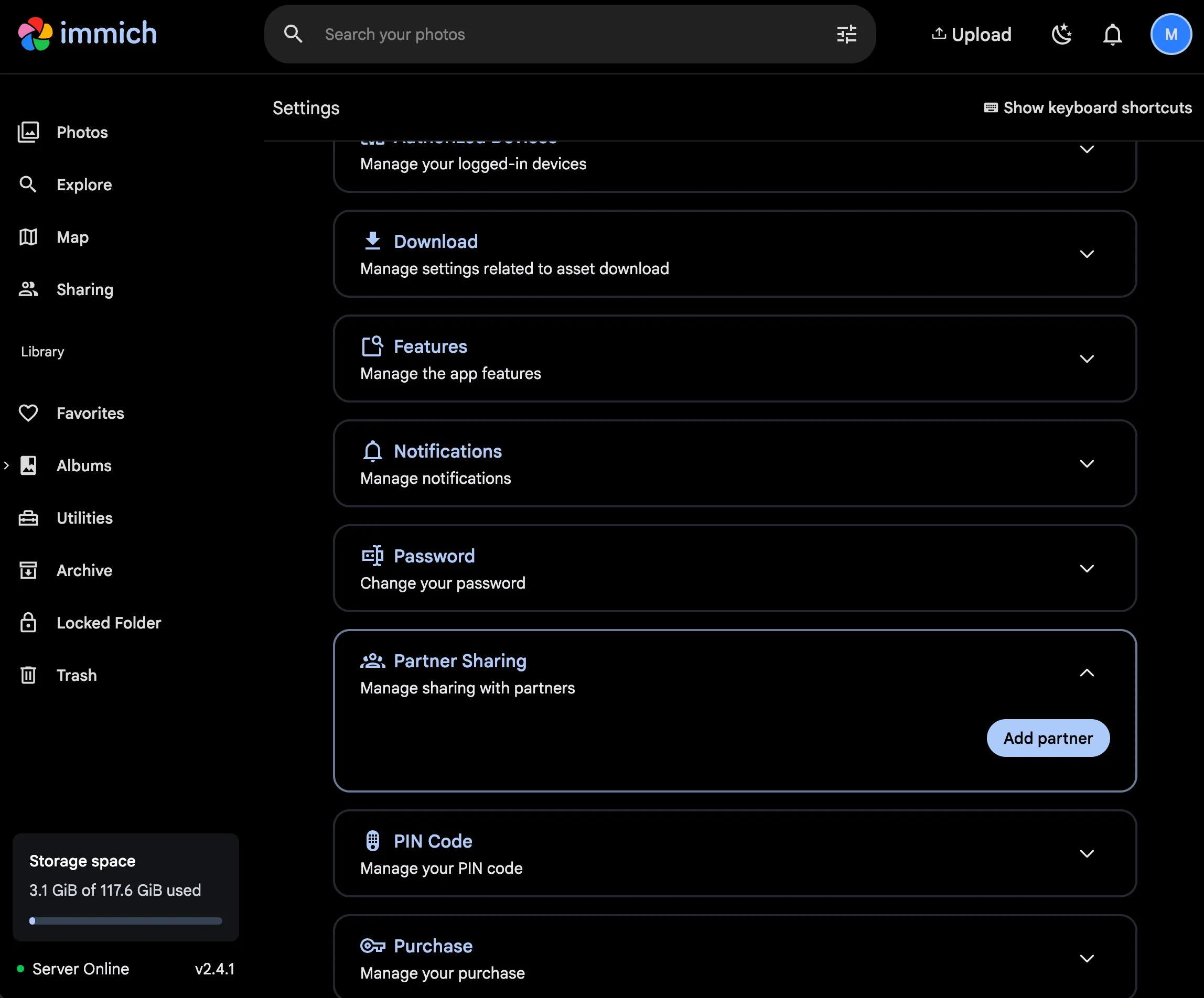
If you and your spouse want a completely unified photo library where you can see all of each other's photos seamlessly, you should use Partner Sharing instead of albums.
Once accepted, you will see a new toggle at the top of your main timeline allowing you to view "My Photos", "Partner's Photos", or "Both".
Need help? Email hello@localnode.tech or visit localnode.tech/contact.