Immich Face Recognition Setup
Photos
Beginner
5 min read
Published: May 7, 2026
Was this helpful?
Help us improve our community guides.
Help us improve our community guides.
Backing Up Immich: Protect Your Photo Library — Step-by-step guide for your LocalNode.
Complete Immich Setup Guide — Step-by-step guide for your LocalNode.
Migrating from Google Photos to Immich — Step-by-step guide for your LocalNode.
Immich's facial recognition allows you to instantly find every photo you've ever taken of a specific family member. It runs entirely locally on your LocalNode, meaning your biometric data never touches the cloud.
The machine learning model scans every photo for human faces, crops them, analyzes the geometry, and groups identical faces together. You then provide a name for that group.
Facial recognition is not instantaneous. After you upload a photo, it enters a queue.
You can check the progress by logging into the web dashboard, clicking Administration > Jobs, and looking at the "Facial Recognition" progress bar.
Once faces are grouped, you need to assign them names.
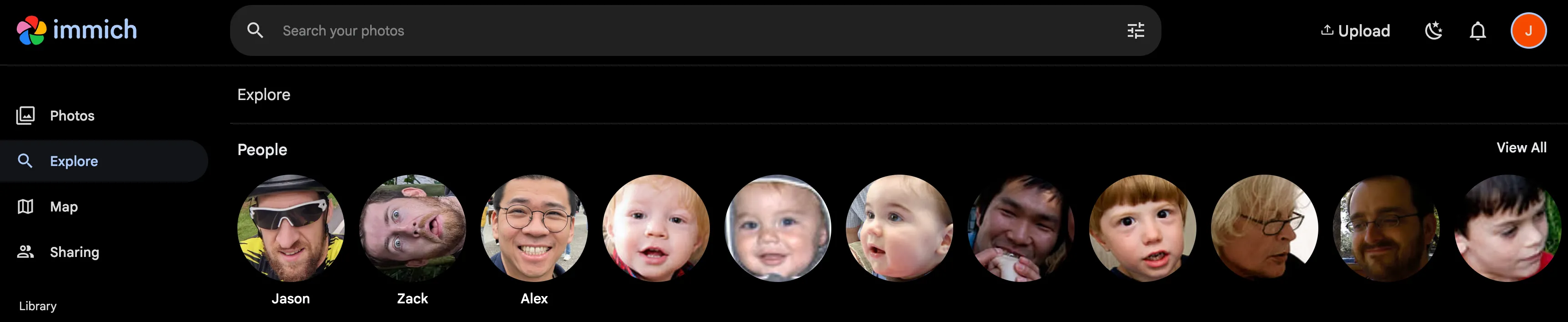
💡 Tip: Once a person is named, you can simply type their name into the main search bar to pull up every photo they are in. You can even combine searches, like "John and Jane at the beach".
The AI is smart, but a person's face changes as they age, or they might be wearing sunglasses. Sometimes Immich creates two separate profiles for the same person.
By merging faces, you actually train the AI to be smarter. It learns that "John with a beard" is the same as "John without a beard".
The AI will detect every face. If you took a photo at a crowded concert, you might end up with 30 profiles of strangers in the background.
This doesn't delete the photos; it simply removes the faces from the primary People dashboard so it stays uncluttered.
Need help? Email hello@localnode.tech or visit localnode.tech/contact.