Managing Local Ip Addresses
Advanced
Beginner
5 min read
Published: May 7, 2026
Was this helpful?
Help us improve our community guides.
Help us improve our community guides.
Adding External Storage to Your Localnode — Step-by-step guide for your LocalNode.
Adding Smart Home Devices to Home Assistant — Step-by-step guide for your LocalNode.
Backing Up Your Entire Localnode Configuration — Step-by-step guide for your LocalNode.
Your LocalNode relies on its IP address (e.g., 192.168.1.50) to communicate with your other devices. If your router changes this address unexpectedly, apps like WireGuard and AdGuard will instantly break. Here is how to lock it in place permanently.
By default, your home Wi-Fi router is in charge of handing out IP addresses. This is called DHCP. When the LocalNode boots up, it asks the router, "Who am I?" and the router replies, "You are 192.168.1.50 for the next 24 hours." We want to tell the router to give the LocalNode that exact same address forever.
Every piece of network hardware (like your phone, your TV, and the LocalNode) has a unique, permanent fingerprint called a MAC Address. It looks like this: A1:B2:C3:D4:E5:F6.
A "DHCP Reservation" tells the router: "Every time you see this specific MAC address plug in, always give it the IP address 192.168.1.50."
Because every router brand (Eero, Netgear, Xfinity, Asus) has a different interface, the exact menus will vary, but the process is identical.
192.168.1.1 or 10.0.0.1). You can usually find the password printed on a sticker on the bottom of the router.localnode.💡 Tip: We highly recommend doing this on day one. If you skip this, a simple power outage could cause your router to assign the LocalNode a new IP address, forcing you to re-configure all your port forwarding rules.
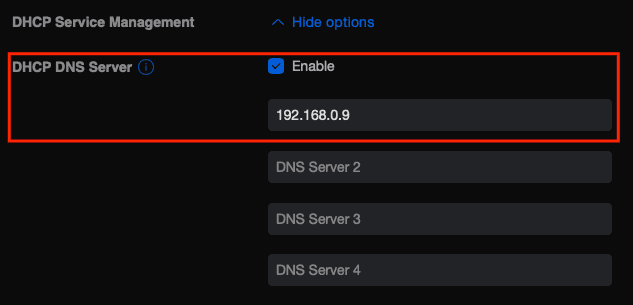
If you forgot to set a DHCP reservation and the power went out, your LocalNode might now be 192.168.1.55, meaning your bookmarks will fail.
http://localnode.local into your browser. This uses mDNS to find the server regardless of its IP address.Need help? Email hello@localnode.tech or visit localnode.tech/contact.