LocalNode
How it worksDemoAppsPricingFAQShop now
← All guides
Home/Community/Managing Docker Containers with Portainer

Managing Docker Containers with Portainer

Advanced
Beginner
5 min read
Published: May 7, 2026

Was this helpful?

Help us improve our community guides.

In this guide

  • Overview
  • Step 1: Accessing Portainer
  • Step 2: Understanding the Containers view
  • Step 3: Viewing app logs
  • Step 4: Restarting a frozen app

Need direct help?

LocalNode Care Plan members get priority remote support.

Email Support →

More in Advanced

Adding External Storage to Your Localnode

Adding External Storage to Your Localnode — Step-by-step guide for your LocalNode.

5 min read

Adding Smart Home Devices to Home Assistant

Adding Smart Home Devices to Home Assistant — Step-by-step guide for your LocalNode.

5 min read

Backing Up Your Entire Localnode Configuration

Backing Up Your Entire Localnode Configuration — Step-by-step guide for your LocalNode.

5 min read
LocalNode

Plug-and-play home server. Your data, your hardware, your rules.

Product

How it worksDemoAppsCommunityPricingFAQ

Support

ContactShipping & ReturnsTrack Order

Legal

Privacy PolicyTerms of ServiceShipping Policy
© 2026 LocalNode. Built for people who value their privacy.Denton, TX · hello@localnode.tech

⚠️ Administrative Tool — changing settings here can break your server

Under the hood, every single app on the LocalNode runs inside its own isolated "container" using Docker. Portainer is the master control panel that lets you see, stop, start, and debug these containers.

Overview

Docker is what makes LocalNode so reliable. Because Jellyfin and Nextcloud are in separate containers, if Nextcloud crashes, Jellyfin keeps running perfectly. Portainer gives you a visual dashboard to manage this underlying infrastructure without needing to use the command line.

Step 1: Accessing Portainer

  1. Go to your LocalNode dashboard at http://localnode.local.
  2. Scroll down to the Advanced / Admin section and click Portainer.
  3. Log in with your administrator credentials.
  4. On the home screen, click the Local environment (the tile with the whale icon).

Step 2: Understanding the Containers view

In the left sidebar, click Containers. You are now looking at the heartbeat of your server.

  • State: A green "running" badge means the app is healthy. A red "stopped" badge means the app has crashed or been turned off.
  • Published Ports: This shows exactly which ports are mapped. If you see 0.0.0.0:8096 -> 8096/tcp on the Jellyfin row, that means you can access Jellyfin by typing port 8096 in your browser.
  • Quick Actions: The tiny buttons next to the app name (Logs, Inspect, Stats, Console) are your debugging tools.
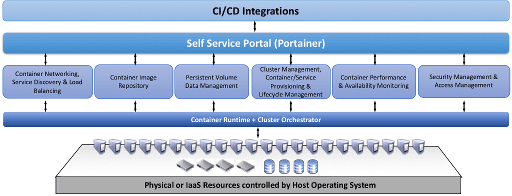
Portainer diagram illustrating how extensions relate to environments and container workloads.
Portainer CE diagram (portainer/portainer, zlib license).

Step 3: Viewing app logs

If an app is behaving strangely (e.g., Jellyfin won't play a specific movie), checking the logs is the first step.

  1. Find the app in the Containers list.
  2. Click the Logs icon (it looks like a tiny sheet of paper).
  3. You will see a real-time feed of what the app is doing. Red text usually indicates an error, which you can copy and search for on Google.
  4. Click "Auto-scroll" at the top to watch the logs live while you try to reproduce the error in another tab.

Step 4: Restarting a frozen app

Just like restarting your computer, restarting a single container fixes 90% of weird bugs.

  1. Check the box to the left of the frozen app (e.g., Nextcloud).
  2. At the top of the list, click the Restart button.
  3. Wait about 10 seconds. The state will change from "restarting" back to "running".

This restarts ONLY Nextcloud. Anyone watching a movie on Jellyfin won't even notice.

💡 Tip: You can also see how much RAM and CPU an app is using by clicking the Stats icon (the tiny graph). If your LocalNode is running slowly, check here to see if a specific app is hogging resources.

Next Steps

  • How to manually update an app

Need help? Email hello@localnode.tech or visit localnode.tech/contact.