LocalNode
How it worksDemoAppsPricingFAQShop now
← All guides
Home/Community/Complete AdGuard Home Setup Guide

Complete AdGuard Home Setup Guide

AdGuard
Beginner
5 min read
Published: May 7, 2026

Was this helpful?

Help us improve our community guides.

In this guide

  • Overview
  • Prerequisites
  • Step 1: Initial Setup Wizard
  • Step 2: Configuring Upstream DNS
  • Step 3: Testing the Block
  • Next Steps

Need direct help?

LocalNode Care Plan members get priority remote support.

Email Support →

More in AdGuard

AdGuard Home Parental Controls

AdGuard Home Parental Controls — Step-by-step guide for your LocalNode.

5 min read

AdGuard Home vs Pi-hole: Why We Chose AdGuard

AdGuard Home vs Pi-hole: Why We Chose AdGuard — Step-by-step guide for your LocalNode.

5 min read

Setting Up AdGuard Home on Every Device

Setting Up AdGuard Home on Every Device — Step-by-step guide for your LocalNode.

5 min read
LocalNode

Plug-and-play home server. Your data, your hardware, your rules.

Product

How it worksDemoAppsCommunityPricingFAQ

Support

ContactShipping & ReturnsTrack Order

Legal

Privacy PolicyTerms of ServiceShipping Policy
© 2026 LocalNode. Built for people who value their privacy.Denton, TX · hello@localnode.tech

AdGuard Home is a network-wide ad and tracker blocker. Instead of installing ad-blockers on every single browser in your house, AdGuard stops the ads at the source before they even reach your devices.

Overview

AdGuard Home operates as a "DNS Sinkhole". Whenever your phone or smart TV tries to load an advertisement or a tracking pixel, AdGuard looks at its massive list of known ad servers and simply blocks the connection. The result is a faster, cleaner internet experience across your entire Wi-Fi network.

Prerequisites

  • Your LocalNode must be powered on and connected to your router via Ethernet.
  • You need to know the IP address of your LocalNode (e.g., 192.168.1.50).

Step 1: Initial Setup Wizard

The first time you launch AdGuard Home, you must configure its core listening ports.

  1. Go to your LocalNode dashboard at http://localnode.local.
  2. Click on the AdGuard Home app icon. This will take you to http://localnode.local:3000.
  3. Click Get Started.
  4. On the "Admin Web Interface" screen, leave the Listen Interface as "All interfaces" and the port as 3000.
  5. On the "DNS Server" screen, leave the Listen Interface as "All interfaces" and the port as 53. (Port 53 is the universal standard for DNS traffic).
  6. Click Next.
  7. Create an administrator username and a strong password. This protects your AdGuard dashboard.
  8. Click Next, then click "Open Dashboard".

💡 Tip: From now on, you will log into AdGuard Home using the username and password you just created. Do not lose this password!
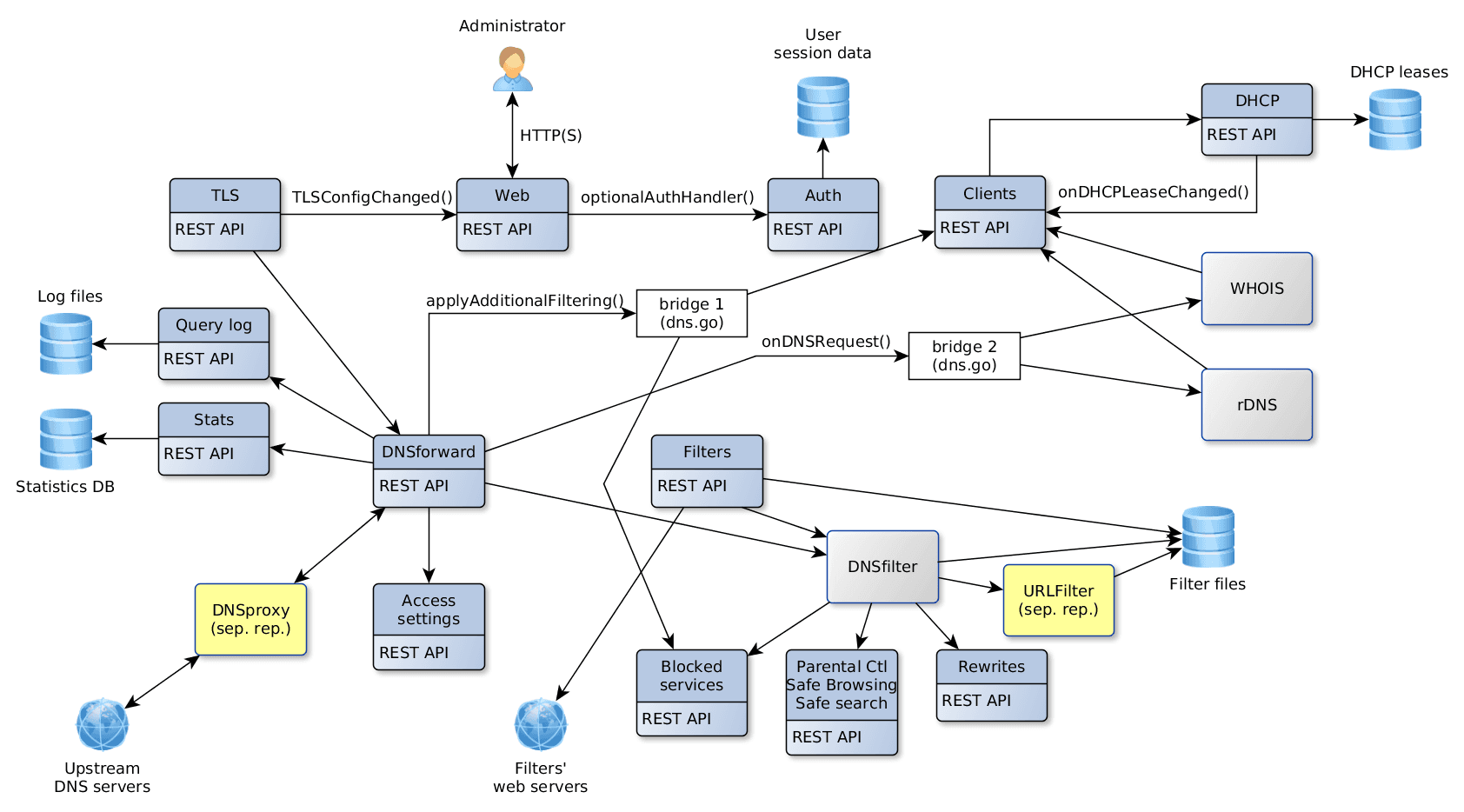
AdGuard Home architecture diagram showing DNS query flow through filtering layers.
AdGuard Home documentation diagram (AdguardTeam/AdGuardHome, GPL-3.0).

Step 2: Configuring Upstream DNS

When a request is *not* an ad (e.g., you typing google.com), AdGuard needs to forward that request to a real internet DNS provider to get the IP address. We recommend using Cloudflare for speed and privacy.

  1. Log into the AdGuard Home dashboard.
  2. In the top menu bar, click Settings > DNS Settings.
  3. In the "Upstream DNS servers" text box, delete what is there and paste the following:
https://dns.cloudflare.com/dns-query tls://dns.google
  1. Check the radio button for Parallel Requests. This makes your internet noticeably faster by asking multiple servers simultaneously and taking the fastest answer.
  2. Scroll down to the "Bootstrap DNS servers" box and enter:
1.1.1.1 8.8.8.8
  1. Click Apply at the bottom of both sections.

⚠️ Warning: Do not skip the Bootstrap DNS step. If AdGuard doesn't have a bootstrap IP, it cannot look up the secure Cloudflare URL, and your entire internet will stop working.

Step 3: Testing the Block

Right now, AdGuard is running, but your devices aren't using it yet. To verify it works:

  1. Go to your laptop's Network Settings (Wi-Fi or Ethernet).
  2. Change the DNS server manually from Automatic to the IP address of your LocalNode (e.g., 192.168.1.50).
  3. Open a messy website (like a news site or recipe blog). You should notice all banner ads are replaced by blank spaces.
  4. Go back to the AdGuard dashboard. You should see the query counters going up!

Next Steps

  • Configuring your router to use AdGuard automatically for all devices
  • Adding better blocklists

Need help? Email hello@localnode.tech or visit localnode.tech/contact.